BIM Services
 Architectural
 Structural
 MEP
MEP Facade
 Industrial
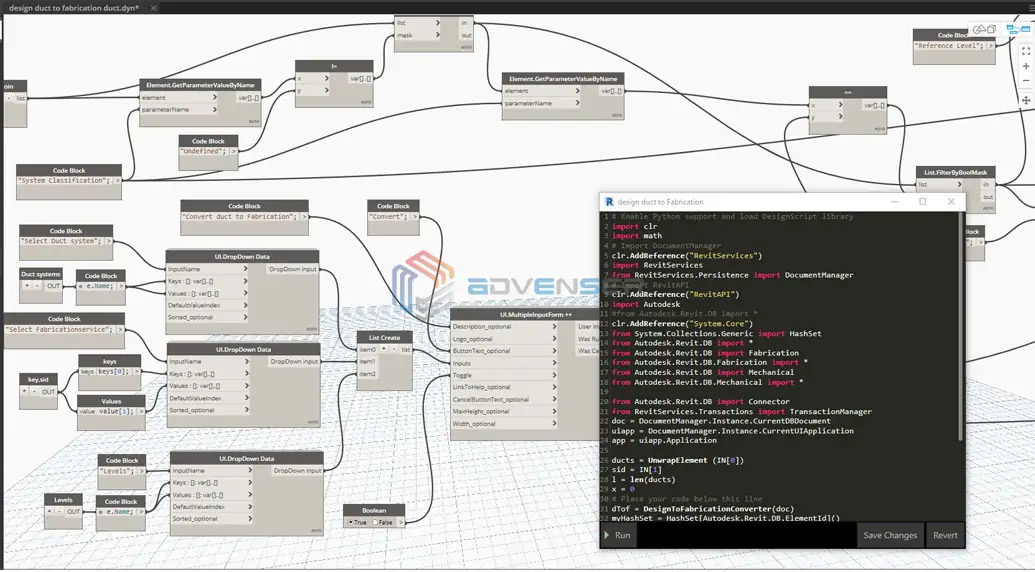
What is Automation in Revit?
Automation in Revit means using scripts, macros, plugins or add-ins to reduce manual effort for repetitive tasks such as modeling, sheet creation, scheduling, data extraction, and quality checks. Instead of performing the same clicks repeatedly, automation lets you execute those tasks reliably and quickly — often with a single run or button click.
Common methods of automation in Revit
Dynamo
A visual programming environment bundled with Revit. Users build workflows by connecting nodes (no traditional code required). Great for beginners to intermediate users and well suited for geometry, data manipulation and workflow automation.
Macros
Built inside Revit using C# or VB.NET via the Macro Manager. Useful for project-specific or application-wide quick automations without packaging an add-in.
Revit API (Plugins / Add-ins)
The most powerful approach using C# or Python to build custom add-ins. Offers full control and best suited for complex or production-grade automation.
PyRevit and Third-Party Add-ins
Community and commercial tools (like PyRevit, DiRoots, Ideate, etc.) that provide ready-made functionality and productivity improvements. In this blog we’ll focus on Dynamo — how to get started, practical nodes you can practice with, external packages, limitations, and where to go next.
How to Start Learning Dynamo
Dynamo is the best starting point if you’re new to automation in Revit. It’s visual, approachable, and powerful once you learn the basics.
1. Explore the Dynamo Interface
Open Dynamo from the Manage tab in Revit. Learn the main areas: Library (nodes), Workspace (graph area), and Preview/Watch (results).
2. Use Learning Resources
Dynamo Primer — the official free guide. Dynamo Forum — active community for questions and shared scripts.
3. Move Towards Advanced Workflows
After you’re comfortable with node graphs, learn Python scripting inside Dynamo to extend what nodes can do. Python in Dynamo is a natural bridge toward using the Revit API for more advanced automation.
4. Practice with Basic Nodes
Start with these beginner nodes to get practical experience selecting and reading element data: Select Model Element — pick a single element in Revit. Select Model Elements — select multiple elements. Categories — choose a Revit category (Walls, Doors, Ducts…). All Elements of Category — returns every element in the chosen category. Element.Name — gets the element’s name/type. Element.GetParameterValueByName — read parameter values (e.g., Width, Level). Element.SetParameterByName (or Element.SetParameterValueByName) — update parameter values. Watch — inspect outputs in Dynamo. 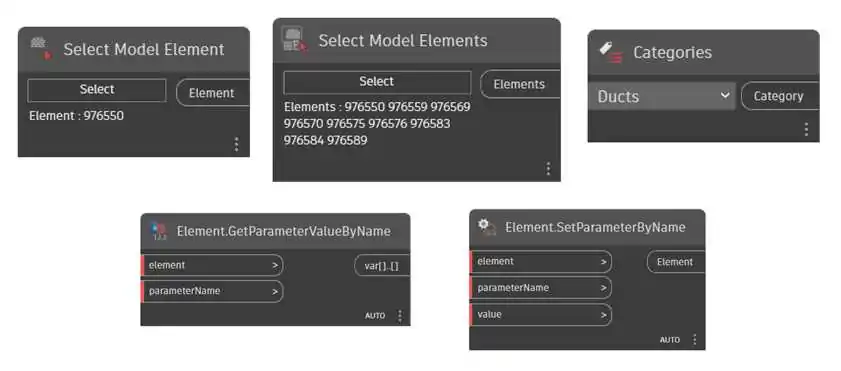 Example exercise: Categories → All Elements of Category (Ducts) → Element.Name → Watch This will list all duct type names in the model and helps you understand how Dynamo talks to Revit. Example exercise: Categories → All Elements of Category (Ducts) → Element.Name → Watch This will list all duct type names in the model and helps you understand how Dynamo talks to Revit.
5. Importance of External Packages
Dynamo’s ecosystem is supercharged by community packages. They add pre-built nodes that save time and solve common problems: Clockwork — utilities for lists, elements, geometry. Data-Shapes — build simple UIs and user interactions. Archilab — project utilities and geometry helpers. BimorphNodes — geometry and productivity tools. Install and explore packages — they’ll dramatically reduce the time it takes to build useful automations.
6. Combining DesignScript, Nodes, and Revit API in Dynamo
Dynamo is more than just a collection of nodes. Its true power comes from the way it allows you to combine visual programming (nodes), DesignScript (text-based expressions), and the Revit API (via Python) in a single workflow. Nodes – The building blocks of Dynamo. They are easy to use, visual, and great for beginners. Example: All Elements of Category, Element.Name, Watch. DesignScript – A scripting language built into Dynamo. It allows you to write compact expressions directly in Code Block nodes, which often replace multiple nodes. Example: Writing 0..10..2; in a Code Block generates a list from 0 to 10 in steps of 2. Instead of chaining multiple nodes, you can use a single line of DesignScript for efficiency. 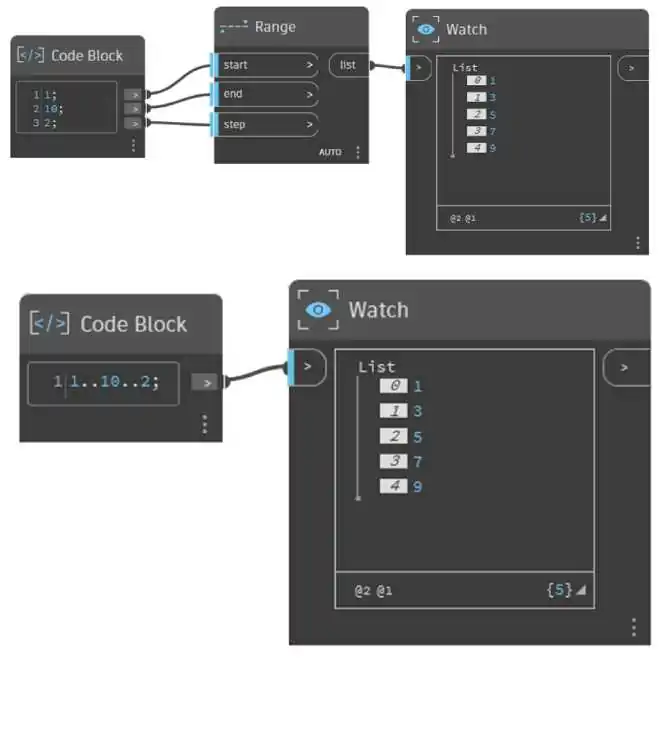 Revit API – Accessible in Dynamo through the Python node. The API gives full control over Revit’s database, elements, and parameters. If a function is not available as a node, you can call it directly using API classes. For detailed explanations of Revit API classes, methods, and properties, you can refer to the official documentation: Revit API Docs This site provides searchable access to all Revit API namespaces, including Autodesk.Revit.DB, Autodesk.Revit.UI, and others, making it a valuable resource for developers working with Dynamo and custom scripts. Example: Collect All Ducts Using Python (Revit API).While nodes like Categories and All Elements of Category can collect ducts, using the Revit API inside a Python node gives you more control. Python Script (inside Dynamo):
 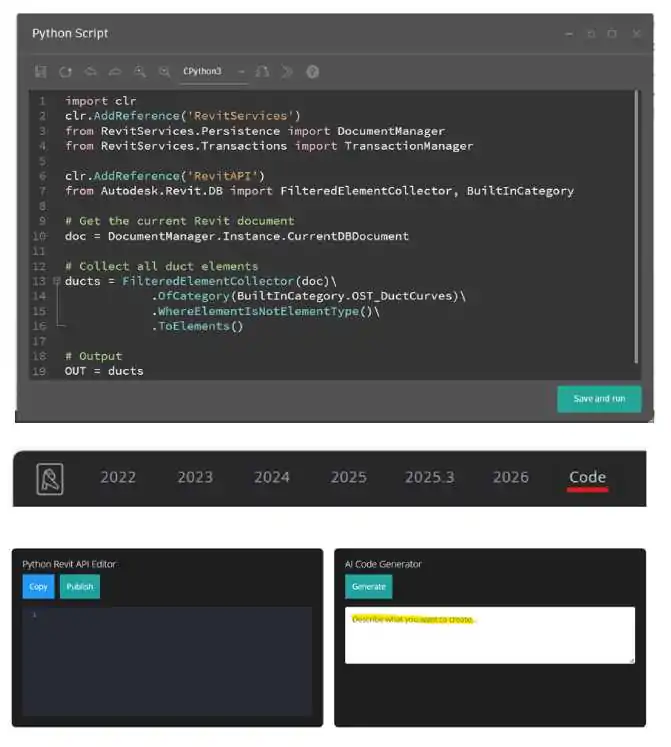 Start with simple scripts generated by AI to see how Revit API calls are structured. Use these scripts in Dynamo’s Python node, then gradually customize them. Study the community scripts to understand patterns (element filtering, parameter read/write, transactions). Over time, reduce dependency on AI and rely more on your own code logic.
7. Limitations of Dynamo
Be aware of Dynamo’s boundaries so you use the right tool for the job: Performance — very large graphs or heavy element operations can slow Revit or cause crashes. Limited API exposure — not every Revit API function is available via native nodes; sometimes Python/C# is required. Stability & Maintenance — scripts may break across Revit/Dynamo versions or if model conditions change. Readability — big graphs can become hard to manage; good organization and comments help. When not to use — for enterprise-grade, highly customized workflows, a compiled add-in (Revit API) or macro may be more appropriate.
Conclusion
Automation in Revit is no longer optional — it’s a necessity for professionals aiming to work efficiently and deliver high-quality projects. Dynamo provides a practical starting point for anyone new to automation, with an easy-to-learn interface, powerful external packages, and the flexibility to grow into advanced workflows.The key is to start small, practice consistently, and build on your knowledge step by step. With time, you’ll not only save hours of repetitive work but also open up new possibilities in BIM design and BIM management.